Scanning
Scanning with a hardware scanner
AirScan/eSCL scanner discovery, scan settings, and per-scanner defaults.
Which scanners work
PDFScanner Neo talks to scanners over the network using AirScan, also known as eSCL — the driverless scanning standard built into most Wi‑Fi scanners and multifunction printers sold in the last decade, including models from HP, Brother, Epson and Canon. If your scanner works with Apple’s driverless scanning, it works with Neo. There is nothing to install and no drivers to manage.
Neo does not use USB connections or the old macOS Image Capture driver layer — the scanner needs to be reachable over your network.
Choosing a scanner
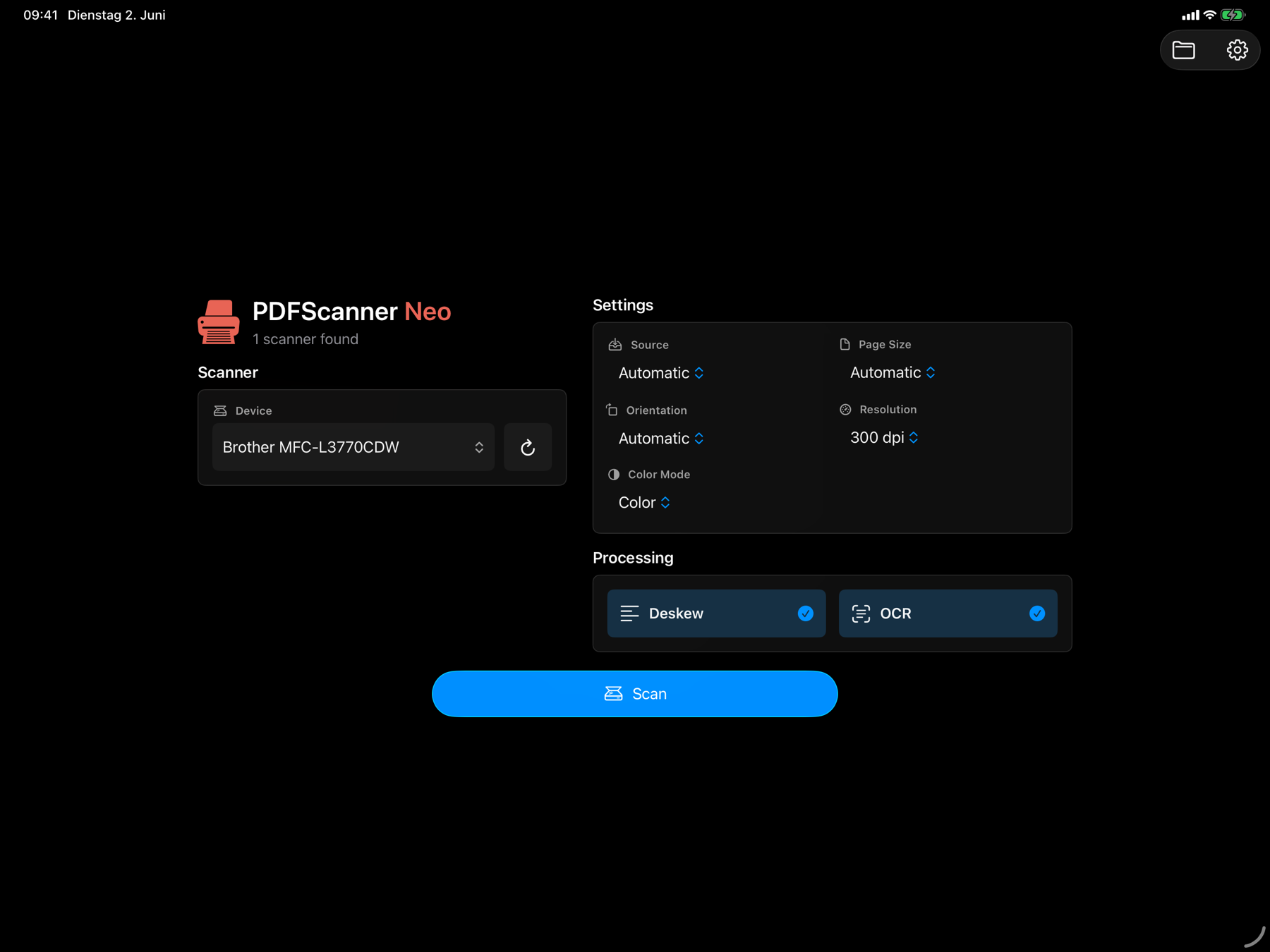
Open the device picker at the top of the scan panel. Neo continuously discovers AirScan scanners on your local network and lists them by name; the status line shows how many were found (for example 2 scanners found). Tap the circular-arrow button (Refresh scanners) to run discovery again after switching on a scanner.
Neo remembers the last scanner you used and selects it automatically the next time — including its settings.
Scan settings
The Settings section of the scan panel shows the options your scanner actually supports — they come straight from the scanner’s advertised capabilities. Settings are remembered per scanner.
- Source
- Automatic, Flatbed, Feeder or Duplex Feeder (both sides in one pass, if your scanner has duplex hardware). With Automatic, Neo prefers the feeder when paper is loaded and falls back to the flatbed when the feeder is empty. No duplex hardware? See Fake Duplex.
- Page Size
- Automatic, A4, Letter or Legal.
- Orientation
- Automatic, Portrait, Landscape, Portrait Upside Down or Landscape Upside Down. With Automatic, Neo detects the text orientation and rotates pages upright for you.
- Resolution
- The DPI values your scanner offers. 300 dpi is the default and the sweet spot for text documents — higher values make noticeably larger files and slower scans.
- Color Mode
- See below.
Color modes
- Color
- Full color, as scanned. The default for every new scanner.
- Color (Clear Background)
- Color content with an automatically cleaned, white background — great for receipts, forms and anything printed on off-white paper.
- Grayscale
- Shades of gray, smaller than color.
- Black and White
- True black-and-white output — the smallest files by far, ideal for text documents and archiving. By default Neo converts to black-and-white on the device (after deskew) rather than in the scanner hardware, which gives visibly better results. Two related switches live in the app settings: Software Black and White Conversion (on by default) and Alternative Black and White Conversion — the alternative algorithm trades a little text crispness for better handling of colored originals.
Processing options
The Processing section adds cleanup during the scan:
- Deskew Pro
- Automatically straightens pages that went through the feeder at a slight angle. See Cleaning up pages.
- OCR Pro
- Recognizes text while scanning so the saved PDF is searchable. See OCR and searchable PDFs.
With Automatically Remove Blank Pages enabled in the app settingsPro, blank backs of one-sided pages are dropped during the scan — useful for duplex feeder batches.
During the scan
Tap Scan and watch pages arrive as the scanner delivers them — you can already reorder, delete or inspect pages while the rest of the stack is still going through the feeder. The status line reports progress (Scanning page 3…, 4 pages added, waiting for next page) and finishes with Scan complete. A cancel button stops the job; if the scanner stalls, Neo shows a countdown before timing out.
Scan again to add more pages to the same documentPro — in the free app, scanning starts with an empty workspace.