Pages & OCR
Cleaning up pages
Crop, deskew, black-and-white conversion, blank page removal, and reverting to originals.
Most cleanup can happen automatically while scanning — auto-rotation, background cleaning, black-and-white conversion, deskewPro, blank-page removalPro. This page covers the manual tools for everything that’s left.
Crop
Choose Crop from the Edit menu to trim margins, cut a page down to its content, or give all pages a uniform size. On iPhone the crop editor is full screen and supports pinch-to-zoom for precise handles.
- Scope
- Page crops only the current page, Selection the selected pages, Document every page with the same rectangle — ideal for uniform margins across a whole scan.
- Format
- Constrains the crop rectangle: Free, Original (the page’s own aspect), 1:1, 4:3, 16:9, A4 or Letter.
- Book Pages
- A special format for scanned book spreads: position the crop over one half of the spread, and Neo splits every spread into two single pages — the left and right book page — in reading order.
Tap Apply to crop. If a page cannot be cropped destructively, Neo hides the trimmed area instead and tells you: Cropped content is still inside the file. Rasterize removes it. Run Rasterize on the page if the cropped-away content must actually be gone — for example before sharing a redacted document.
Deskew — straighten pages Pro
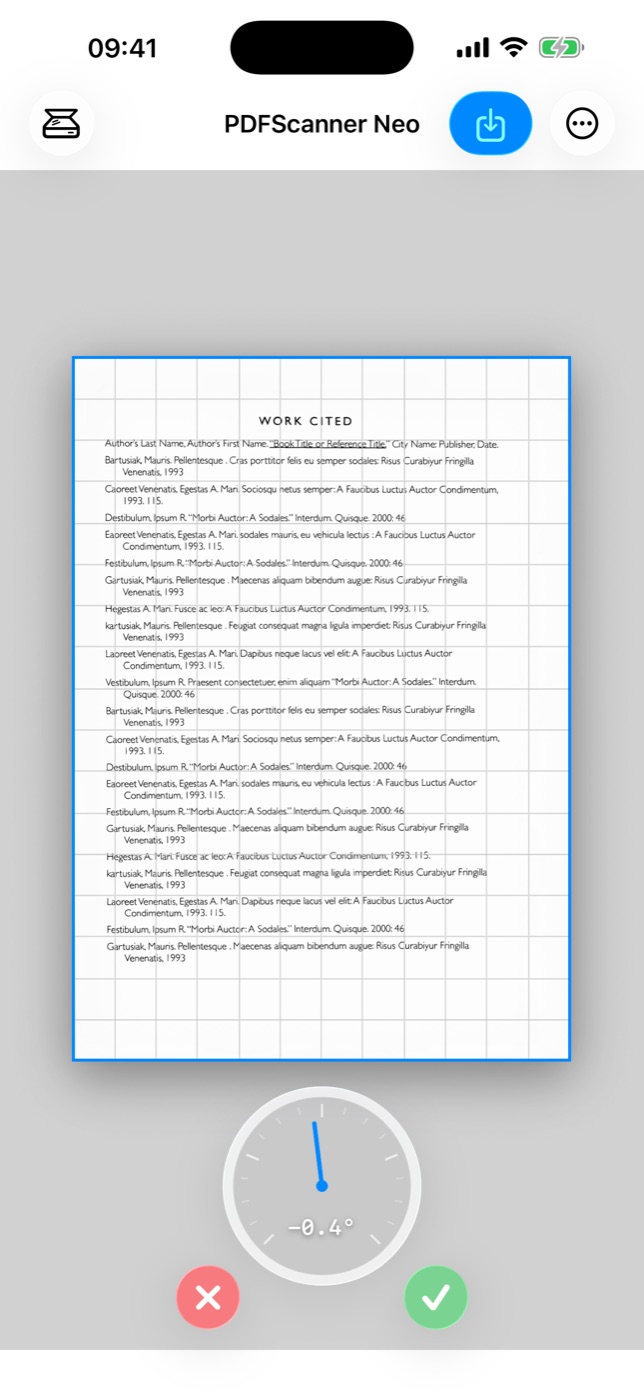
Paper rarely goes through a feeder perfectly straight. Deskew detects the text angle and straightens the page:
- While scanning: enable the Deskew toggle in the scan panel’s Processing section — every page is straightened as it arrives.
- Afterwards: run Deskew from the Actions menu on the current page or a selection.
- Fine-tuning: Manual Deskew opens an angle dial for the current page — for the occasional page the automatic pass doesn’t nail.
Convert to Black and White
Convert to Black and White (also called binarizing) turns a color or grayscale page image into crisp true black-and-white — the format that compresses best and prints cleanest. It is free for everyone and works on the current page or selection. For imported PDFs, only image content is converted; text, vector artwork, annotations, and other non-image PDF content stay as they are. If the whole page must become black-and-white image data, run Rasterize first.
Two switches in the app settings shape the result:
- Software Black and White Conversion
- On by default. When the Black and White color mode is selected for a scan, Neo converts on the device after deskew instead of letting the scanner hardware do it — usually a clearly better result.
- Alternative Black and White Conversion
- Switches to an adaptive algorithm: slightly less crisp text, but better results when the original has colored areas or uneven lighting.
Rasterize
Rasterize flattens a page into plain image data. You rarely need it directly — its two jobs are making cropped-away content physically disappear (see Crop above) and normalizing pages from imported PDFs that behave oddly.
Remove blank pages
- Manually, any time: Remove Blank Pages in the Actions menu checks the whole document and reports what it removed (Removed 3 blank pages) — or No blank pages found. Free for everyone.
- Automatically while scanning: enable Automatically Remove Blank Pages in the app settingsPro and blank backs never enter the document in the first place — the natural companion to duplex-feeder batches.
Revert to Scanned Original
Every scanned page keeps its untouched original. If any processing step — crop, conversion, deskew, dewarp — made a page worse, select it and choose Revert to Scanned Original to get back exactly what the scanner delivered, no matter how many steps have happened since.