Pages & OCR
OCR and searchable PDFs
Make scanned text searchable, selectable, and easier to find with Siri and Spotlight.
What OCR does for your PDFs
OCR (optical character recognition) reads the text on your scanned pages and embeds it as an invisible text layer inside the PDF. The page still looks exactly like the scan, but now:
- Siri and Spotlight can find the document by its contents — ask for an invoice or search for an invoice number, and the PDF is easier to find.
- Text can be selected, copied and searched in any PDF app — Preview, Files, Acrobat, your browser.
- PDFScanner Neo can derive filenames from the document itself: its title and the date printed on it. See Save presets and filenames.
OCR is part of PDFScanner Neo ProPro.
Running OCR
- While scanning (recommended): enable the OCR toggle in the scan panel’s Processing section. Pages are recognized in the background as they arrive; a small badge on the thumbnail shows while a page is still processing.
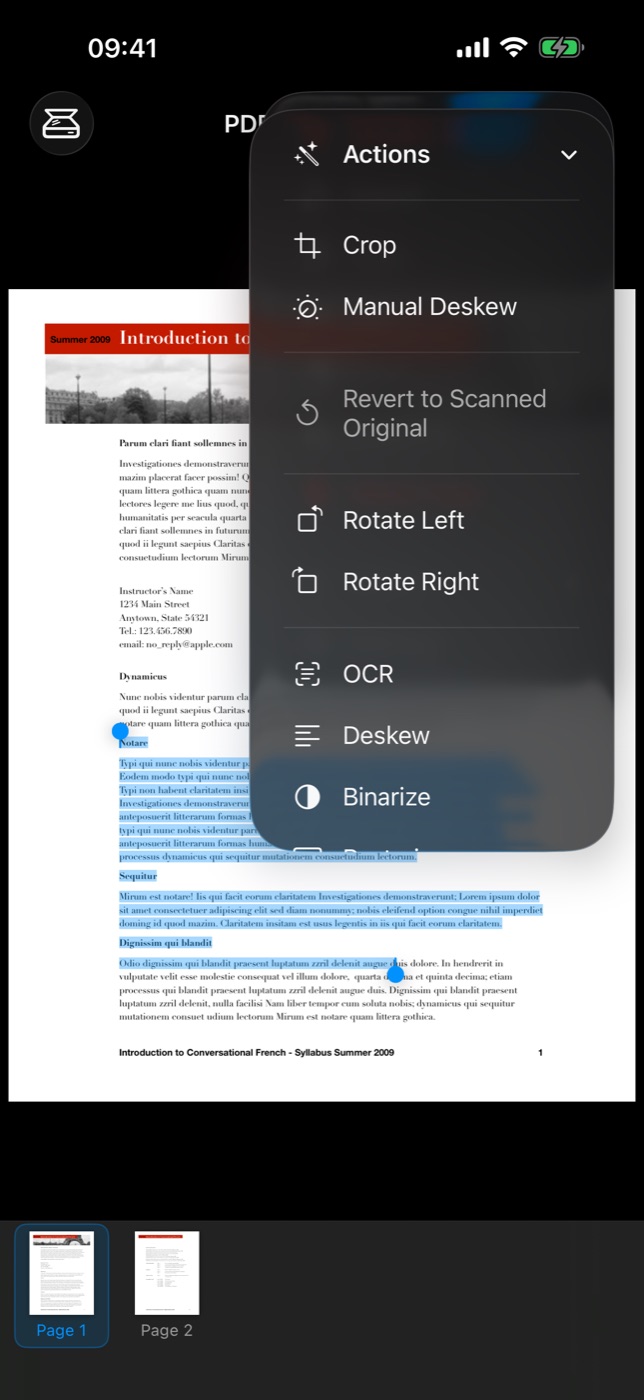
- Afterwards: choose OCR from the Actions menu to recognize the current page or the selected pages — for example on a document you opened or imported.
Languages and privacy
Recognition runs entirely on your device using Apple’s text recognition, with automatic language detection — there is no language list to configure and nothing is uploaded anywhere. Documents that mix languages are fine.
Good to know
- Run OCR before saving — the searchable text layer is written into the exported PDF. Neo’s compact export preserves it, and other apps can use it immediately.
- For archival exports, the Create PDF/A-2u Archive format stores recognized text in a strictly standardized way (the “u” means all text maps to Unicode), so it stays extractable decades from now. See Saving and exporting.
- Recognition quality follows scan quality: 300 dpi, straight pages and clean contrast give the best results — deskew exists for a reason.